iPhones are usually pretty reliable and perform well, but like any gadget, they can run into problems as they age. When something’s off, the first question people often ask is whether it’s a software or hardware issue. Knowing the difference can really help you figure out the best way to fix it and avoid unnecessary costs. In this guide, we’ll break down the details of software and hardware problems with iPhones. We’ll look at what makes them different, the common signs you might notice, and how to tackle these issues the right way.
What Are Software Issues?
Software problems on your iPhone can come from the IOS operating system or the apps you have installed. Common issues include bugs that can cause apps to crash, slow down your device, or create problems with the touchscreen. You might also face connectivity issues with Wi-Fi or Bluetooth, random freezes, app closing unexpectedly, or your battery draining faster than normal. The good news is that many of these software issues can be fixed without spending any money.
What Are Hardware Issues?
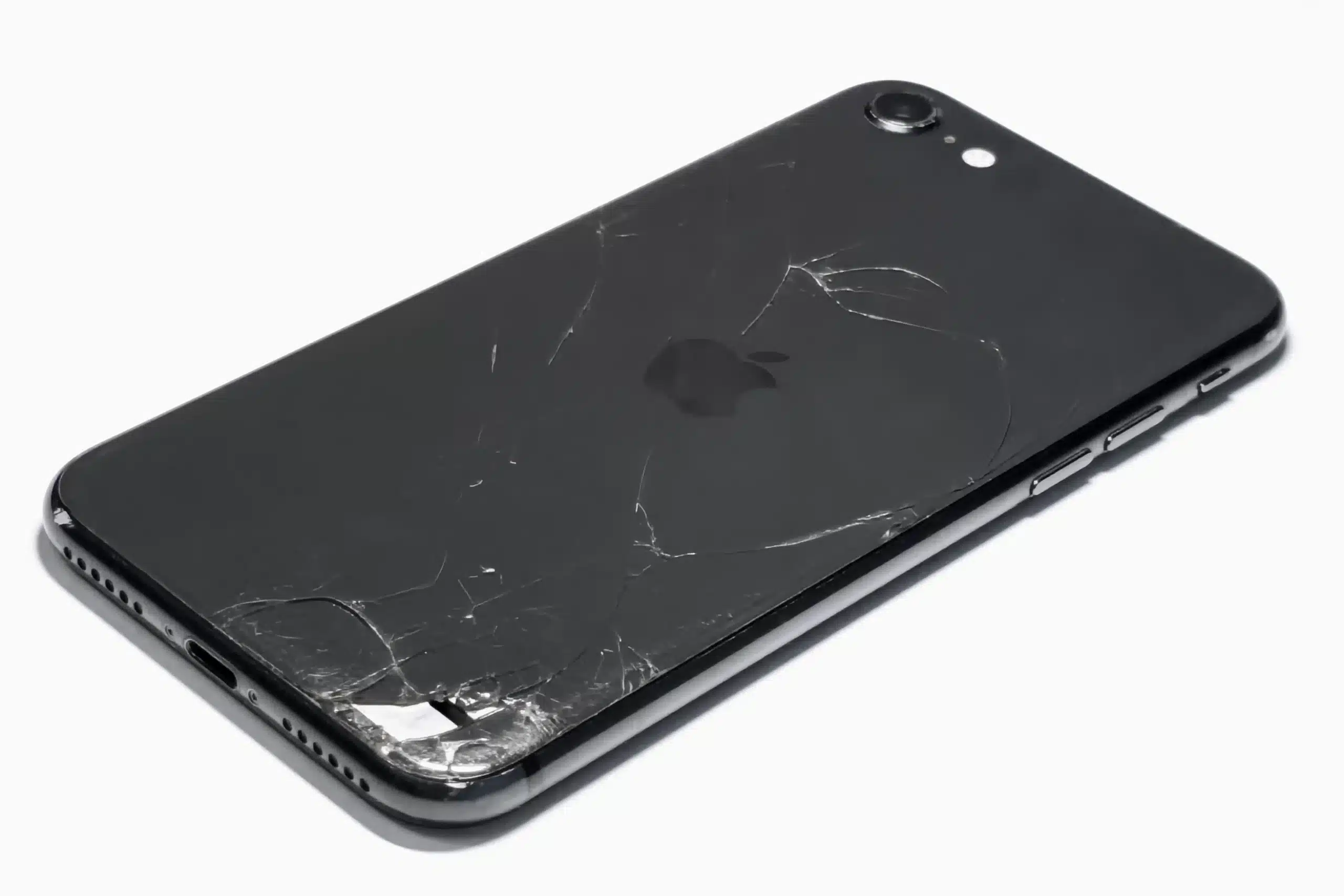
When it comes to hardware issues, we’re talking about the actual parts of your phone, like the screen, battery, or motherboard. These issues can happen for many reasons, such as dropping your phone, spilling some water on it, regular wear and tear, or even factory defects. You might notice things like cracked screens, touchscreens that don’t respond, charging ports that don’t work, cameras that give you trouble, sound issues with your speakers or microphone, and batteries that swell or seem to drain too quickly. Unlike software problems, which are often easy fixes, hardware issues usually need a bit more hands-on fix.
Common Signs of a Software Problem
Many iPhone issues are caused by software problems, not broken parts, and the signs are often easy to spot. Here are the most common signs of a software issue.
Apps Crashing or Freezing
When apps suddenly shut down, freeze, or just won’t open, it’s usually a software problem. This can happen if the apps are outdated, there are bugs in iOS, you’re low on storage, or the app data is messed up.
iPhone Running Slowly or Lagging
A slow iPhone is usually due to some software issues going on. If you’ve got too many apps running in the background, are using an old iOS version, or your storage is packed, it can really slow things down.
Random Restarts or Reboots
If your iPhone keeps restarting by itself, it’s usually due to some software issues. This can happen after a bad update or if there’s a clash between apps. Those restarts can seem a bit random, can’t they? But don’t worry, updating iOS or resetting your settings usually does the trick.
Touchscreen Delay (with no cracks)
If your screen is slow to respond but isn’t cracked, it’s probably a software issue. Sometimes, iOS bugs or memory overload can make the touch lag. Restarting your phone might give you a quick fix, but usually a software update or reset resolves the issue.
WiFi/Bluetooth Connection Dropping
Wi-Fi and Bluetooth dropping out a lot usually happen because of some software glitches or incorrect settings. This happens a lot after updating iOS. A simple fix is to reset your network settings, which often solves the issue.
iOS Update Failure
If your iPhone won’t update or gets stuck during an update, don’t worry, it’s usually a software issue. Common reasons are low storage or a weak internet connection. If you free up some space, that often helps. And sometimes, updating through your computer can do the trick, too.
No Service or Signal Issues
Seeing “No Service” on your phone, especially when there’s no physical damage, usually means it’s a software or carrier settings problem. A quick restart or updating your carrier settings could easily fix the problem.
Battery Draining Fast After a Recent Update
It’s pretty normal for your battery to drain quickly after an iOS update. Your phone might be busy running background tasks as it gets used to the new update. Even if your battery health seems fine, a quick restart and updating your apps can usually help.
Ghost Touches Caused by Bugs
Ghost touches are when your screen acts like it’s being touched, even when it’s not. If your screen isn’t damaged, it’s usually a software issue, especially after updates or from apps that aren’t working quite right.
Common Signs of a Hardware Problem
When your iPhone has physical damage or failing parts, it often shows clear signs of a hardware problem. Here are the most common hardware issues.
Cracked Screen or Unresponsive Touchscreen
A cracked screen usually means there are some hardware issues. Even tiny cracks can affect how the touch responds. If the screen isn’t responding at all, that touch layer might be damaged. Unfortunately, software fixes won’t help.
iPhone Not Charging At All
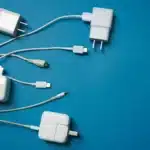
If your iPhone isn’t charging even with a good cable, it probably has a hardware problem. Things like a broken charging port, debris, or a bad battery are pretty common culprits. Trying out different chargers might help you narrow down the problem.
Overheating Consistently Without Heavy Use
If your iPhone is getting hot even when you’re just using it lightly, there could be a hardware issue going on. It might be a bad battery or some other internal part causing constant heat.
Speaker/Microphone Not Working
If you can’t hear any sound or people can’t hear you, it’s likely a hardware issue. Things like dropping your device, water exposure, or dust can damage the speakers or microphones.
Camera Not Opening or Showing a Black Screen
If your camera turns on but the screen is just black, it probably means the hardware is damaged. This often happens if you’ve dropped it or it got wet. Restarting it probably won’t help.
Power, Volume Buttons Not Working
Buttons that aren’t working or feel jammed are usually hardware issues. Things like dirt, wear and tear, or a drop can cause this. There’s no software fix for broken buttons; most of the time, you’ll need to replace them.
Water Damage (screen flickering, green lines, or audio distortion)
If your phone gets wet, you might notice screen flickering, weird green lines, or issues with the sound. It might seem fine at first, but the problems usually get worse over time. Keep in mind, pressing the reset button won’t fix water damage.
Face ID or Touch ID Failure Due to Sensor Damage
If Face ID or Touch ID stops working after you’ve dropped your device, it might be that the sensor is damaged. Those parts are super expensive. Usually, softer updates won’t fix this problem.
Diagnostic Tests to Identify the Root Cause
These simple diagnostic tests can help identify what’s really causing your iPhone issue.
Restart and Observe
First, try restarting your iPhone. A lot of software problems just disappear after a quick reboot. If the problem comes back, it’s likely software-related. Hardware issues usually stay the same.
Update iOS and Apps
Using old software can lead to problems. Usually, updating your iOS and apps can fix a lot of bugs. If things start working again after you update, it was probably a software issue. If the problem keeps happening, it might be something with the hardware.
Use Built-in Diagnostics (Apple Support App) or Third-Party Tools
Apple’s Support app can run basic tests on your iPhone’s battery and internal parts. If it finds issues, hardware repairs might be needed, but remember that software problems usually aren’t detected in these tests.
Safe Mode Alternative (third-party app conflicts)
Some apps might be the reason your device is acting up or running slowly. If you uninstall the apps you recently downloaded, it can help you figure out what’s going on. If things start working fine again, it was likely one of those apps.
Factory Reset
When you do a factory reset, it removes all your software settings and data. If the problem continues after that, it may be a hardware issue. Be sure to back up your important files first.
Physical Inspection
Take a look for any cracks, dents, or water damage. Don’t forget to check the buttons, screen, and charging ports. If you spot any physical damage, it usually means there could be some hardware issues.
When It’s Both: Mixed Software and Hardware Issues
Sometimes, an iPhone has both software and hardware problems at the same time. For example, a failing battery or water damage can cause crashes, lag, or random restarts. It’s important to fix hardware problems first because software fixes alone won’t solve the main issues. After repairing the hardware, updating or resetting the software will help your phone work well again and reduce the chance of those problems coming back.
When to Contact Apple Support or Visit a Service Center
Sometimes iPhone problems need professional help, here’s when to contact Apple or visit a service center.
After Trying All Software Resets and Updates
If restarting, updating, and resetting your phone don’t solve the problem, you might need to get help from a professional. Ongoing issues usually indicate a hardware problem. Continuing to use the phone could make it worse.
If Hardware Tests Fail or Physical Damage is Visible
If you see cracks, water damage, or failed hardware tests, your device needs repair. Software fixes cannot resolve physical damage. Trying to fix it yourself may cause more problems. The safest choice is to get professional help.
When Under Warranty or AppleCare+ For Repairs
If your iPhone is under warranty or AppleCare+, contact Apple or an authorized service provider first. Repairs may cost less or nothing. Repairs done elsewhere can void your coverage. Always check your warranty status.
For Battery Health Below 80%
Battery health below 80% means the battery is worn out. This can cause fast draining, overheating, and slow performance. Software updates won’t fix this. Replacing the battery restores normal performance.
Tips to Prevent Both Software and Hardware Issues
Follow these tips to keep your iPhone running smoothly and avoid any software or hardware issues.
Software Health
- Make sure to keep your iOS and apps up to date to avoid any bugs and security problems.
- Download apps only from sources you trust.
- Restart your iPhone once a week to refresh system processes.
- Free up storage regularly to maintain speed and stability.
Hardware Care
- Use a screen protector and a shockproof case to help prevent damage from drops.
- Use certified charging cables to keep your battery and port safe.
- Keep your phone away from extreme heat, cold, and moisture.
- Close apps that you are not using to lighten the load on your device.
- Proper care helps your iPhone last longer and stay reliable.
Key Takeaways
Fixing software problems on your iPhone can be frustrating, but often you can solve them at home by simple updates, a few resets, or organizing your apps. If you have hardware issues, something might be broken, and it’s best to get a professional to help. Running simple diagnostic steps quickly can help you find out what’s wrong. If you need quick and reliable iPhone repairs, Cell Phone Hospital can assist with both software and hardware solutions.
Frequently Asked Questions (FAQs)
A frozen iPhone screen is typically a software issue, often due to temporary app conflicts, low memory, or bugs in the iOS system.
A bad iOS update may not damage hardware, but it can lead to software glitches, battery drain, or boot loops that make a device seem like it has hardware issues.
A phone that won’t charge is often a hardware issue, usually due to a dirty port or bad cable. To diagnose, restart the phone, clean the charging port, and try a different cable/adapter.
Yes, Face ID can stop working due to software issues, particularly after an iOS update, which can cause bugs, glitches, or corrupted settings.
It’s recommended to back up your iPhone and erase it before giving it to a repair shop to protect your personal data.