A laptop fan that suddenly sounds like a small aircraft engine is distracting. Some fan noise is normal, especially during demanding tasks, but persistent, loud, or unusual sounds, such as grinding or rattling, are worth investigating. This guide provides a practical walkthrough to help you identify the cause of the noise and decide whether a DIY fix or a professional repair is the right call.
What the Fan Actually Does
The primary role of your laptop fan is to cool the central processing unit (CPU) and graphics processing unit (GPU). Excess heat reduces performance, causes components to wear out faster, and can lead to permanent hardware damage. Most laptops have one or two fans: Slim laptops may have just one, and high-performance gaming laptops often feature two or more to manage the heat generated by powerful processors.
Modern laptops use a coordinated cooling system that transfers heat from the CPU and GPU through a layer of thermal paste to copper heat pipes. These pipes contain a small amount of liquid that vaporizes when heated, carrying the heat to a heatsink. The fans then push air across the heatsink fins to expel hot air from the chassis. If any part of this sequence fails, temperatures rise, and the fans must spin faster to compensate.
Understanding this system is the foundation for diagnosing fan problems. A fast-spinning fan is rarely the problem; it’s more likely a symptom of something else failing upstream in the cooling chain.
Common Reasons Your Laptop Fan Is Running Loud
Diagnosing a loud fan comes down to a handful of known issues, and identifying the right cause determines the correct fix. The sections below explain the most frequent culprits in order of likelihood.
Dust and Debris Buildup
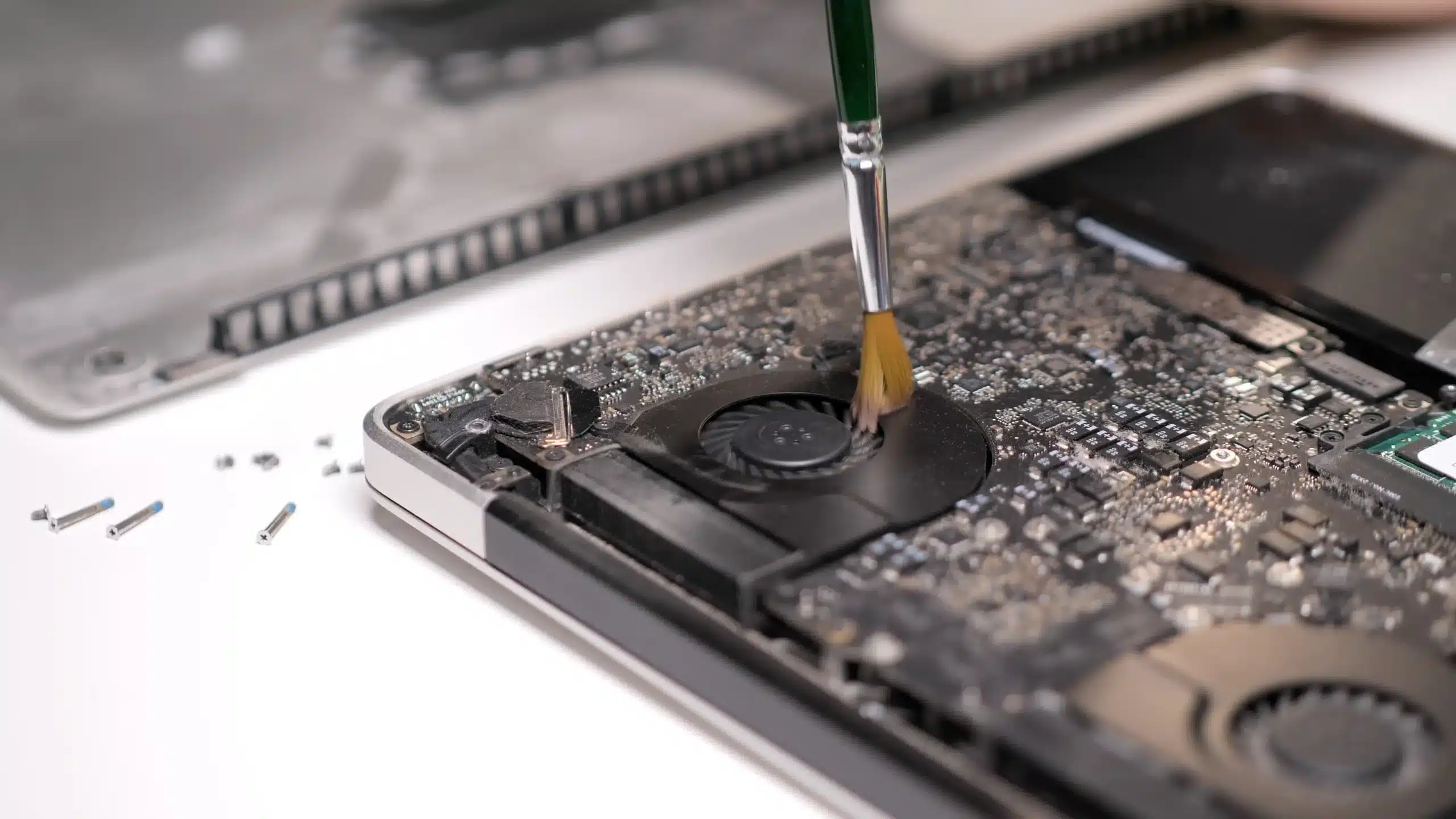
Dust is the most common reason a laptop fan gets loud. As dust accumulates on the fan blades and inside the vents, airflow becomes restricted, and the fan must spin faster to compensate for the reduced cooling efficiency. This issue is especially prevalent in older laptops or those used in dusty environments such as homes with pets.
Dust doesn’t just slow airflow; it acts as an insulating layer over the heatsink fins, trapping heat that would otherwise be expelled. A laptop that has not been cleaned in a year or more can see CPU temperatures rise by 10°C to 20°C compared to a freshly cleaned machine, which directly translates to higher fan speeds and more noise.
The fix is straightforward: clean the vents and fan. The method matters, and the steps are covered in detail in the DIY section below.
Blocked Air Vents
Using a laptop on a bed, couch, or pillow blocks the intake and exhaust vents located on the bottom or sides of the device. Without proper airflow, heat builds up rapidly inside the chassis, and the cooling system responds by running the fan at full speed. Placing the device on a hard, flat surface or using a laptop stand can make a meaningful difference.
This is one of the easiest problems to fix and one of the most commonly overlooked. Laptop vents are typically located on the bottom panel and the rear edge, and when those surfaces rest on fabric, the vents are sealed off entirely. The fan then has no fresh air to pull in, and the hot air it expels has nowhere to go.
A laptop stand or a hardcover book placed under the rear of the device can restore airflow immediately. Dedicated cooling pads with built-in fans provide an additional layer of active cooling for users who regularly work on their laps or in bed.
High CPU or GPU Usage
Running demanding applications generates significant heat. Video games, video editing software, 3D rendering, and large browser sessions with many tabs all push the CPU and GPU to their maximum operating limits. As the fan ramps up to cool the processors, there will be some noise; however, in these situations, this is normal operational noise rather than a sign of a deeper problem.
The relationship between workload and fan noise is direct. A processor running at 100% utilization generates far more heat than one running at only 20%. The fan’s job is to keep the processor below its maximum safe temperature, or Thermal Junction Maximum (“TJ Max”). For most Intel laptop CPUs, TJ Max sits around 100°C, and the fan will spin as fast as necessary to keep temperatures below that threshold.
If the fan is loud only during gaming or video rendering and quiets down afterward, the cooling system is working as intended. If the fan stays loud after the demanding task ends, dust, thermal paste degradation, or a software issue may be keeping temperatures elevated.
Malware Running in the Background
Certain types of malware, particularly cryptomining software, run silently in the background and push the CPU to near-maximum usage. The result is constant heat generation and a fan that never quiets down, even during light use. Running a full antivirus scan is recommended if the fan is loud, even when no demanding applications are running.
Crypto mining malware is designed to be invisible to the user. It does not display any windows or notifications. The only signs are a fan that runs constantly, a laptop that feels warm to the touch during idle periods, and a battery that drains faster than usual. Opening Task Manager on Windows or Activity Monitor on Mac and sorting processes by CPU usage can reveal a suspicious process consuming a high percentage of resources.
Other types of malware, including adware and spyware, can also cause elevated CPU usage, though typically to a lesser degree than crypto miners. A reputable antivirus scan followed by a check of startup programs is the recommended course of action.
A Failing Fan or Worn Bearings
Specific noises indicate mechanical failure within the cooling system. Grinding, buzzing, or rattling sounds usually mean the fan’s bearings are worn out, or a blade is damaged or obstructed. Mechanical failures of this kind require physical inspection and likely a fan replacement.
Understanding the sound can help pinpoint the problem:
| Sound Type | Likely Cause | Urgency |
|---|---|---|
| Grinding | Bearing failure or debris caught in blades | High – stop using and inspect |
| Rattling | Loose blade, loose screw, or debris | Medium – inspect soon |
| Buzzing / Whirring | Dry or failing bearing | Medium – monitor and inspect |
| Clicking | Debris hitting a blade on each rotation | Medium – inspect soon |
| Constant high-pitched whine | Fan at maximum RPM due to heat | Low – diagnose the heat cause first |
A fan with worn bearings will not improve with cleaning or software adjustments, since the bearings are mechanical components that degrade over time with use and heat exposure. Once a bearing fails, the fan can no longer spin freely, reducing airflow and generating noise. Left unaddressed, a failing fan will stop spinning entirely, at which point the laptop will overheat and shut down.
Degraded Thermal Paste
Thermal paste fills the microscopic gaps between the processor and the heatsink to ensure efficient heat transfer. Under magnification, the surface of a CPU die looks like a mountain range, and the thermal paste fills those valleys to create a continuous conductive path. Over time, this paste dries out and loses its efficacy.
When the paste degrades, heat cannot escape the processor quickly enough, causing the fans to run at high speed continuously. Standard silicone-based thermal pastes typically last around three to five years, while premium options can last longer. Laptops that run under heavy loads for extended periods may need repasting sooner.
Signs that thermal paste needs replacing include CPU temperatures that are consistently higher than they used to be under the same workload, fans spinning aggressively during tasks that previously ran quietly, and thermal throttling during moderate use. A technician can remove the heatsink, clean off the old paste, and apply a fresh layer in under an hour.
Outdated BIOS or Drivers
Outdated BIOS firmware and device drivers can cause the system to mismanage power and heat. The BIOS controls how the CPU and fan respond to temperature changes, and an outdated version may use an inefficient fan curve, causing the fan to run at higher speeds than necessary. Manufacturers regularly release BIOS updates that improve thermal management, and skipping these updates can leave the system running suboptimally.
Similarly, outdated GPU drivers can cause the graphics card to consume more power than necessary, generating excess heat. Keeping the operating system, BIOS, and all device drivers up to date is a basic maintenance step that can reduce fan noise without any hardware intervention.
Overheating vs. Thermal Throttling
Understanding the difference between a hot laptop and a failing one helps set realistic expectations.
True Overheating occurs when internal temperatures exceed safe operating limits, triggering an emergency shutdown to prevent permanent hardware damage. True overheating is rare in modern laptops because of built-in thermal protection systems.
Thermal Throttling is far more common. When a processor reaches its TJ Max temperature, it automatically reduces its clock speed to generate less heat. You will notice a sudden drop in performance, such as stuttering in games, slow rendering, or sluggish application response, accompanied by loud fan noise. In this case, the laptop stays safe, but performance drops noticeably.
The distinction matters because throttling is a symptom of a cooling problem, not the problem itself. Addressing the root cause, whether dust, degraded thermal paste, or a failing fan, resolves both the throttling and the noise.
| Symptom | Probable Cause | Recommended Action |
|---|---|---|
| Loud fan during gaming | Normal operation / High TDP | Ensure proper ventilation |
| Loud fan while idle | Background apps / Malware | Check Task Manager / Run antivirus |
| Sudden performance drop | Thermal throttling | Clean vents / Check thermal paste |
| Grinding or rattling noise | Worn fan bearings | Replace fan |
| Random shutdowns | True overheating | Seek professional repair |
| Fan loud only after BIOS update | Firmware issue | Update or roll back BIOS |
How to Diagnose the Problem Before You Fix It
Before attempting any fix, gather data. A few minutes of diagnostics can prevent unnecessary disassembly or expense.
Check CPU and GPU Temperatures
Download a free utility like HWMonitor or Core Temp for Windows, or Macs Fan Control or the Fanny widget for Mac, to read real-time CPU temperatures. Under light use, most laptop CPUs should idle between 35°C and 50°C. Under full load, temperatures up to 90°C are within normal range for many modern processors. Sustained temperatures above 95°C indicate a cooling problem.
Use Task Manager or Activity Monitor
On Windows, press Ctrl + Shift + Esc to open Task Manager and click the CPU column to sort processes by usage. On Mac, open Activity Monitor from Applications > Utilities and click the CPU tab. Any process consuming more than 20% to 30% of CPU resources during light use warrants investigation.
Listen to the Fan
The sound the fan makes tells you a great deal about the nature of the problem. A steady high-pitched whine indicates the fan is spinning fast due to heat. Grinding, rattling, or clicking sounds indicate a mechanical issue with the fan itself. The former is usually a software or maintenance issue; the latter requires physical repair.
How to Quiet a Loud Laptop Fan at Home
There are practical, low-risk steps you can try before seeking professional help, but be sure to power down and unplug your device before attempting any physical cleaning.
Move the Laptop to a Hard Surface
Moving the laptop off a soft surface and onto a desk or table can immediately improve airflow and reduce fan speed. Cooling pads are an affordable accessory for users who frequently work on their laps or in bed, as they provide additional ventilation and keep the intake vents clear.
For users who regularly push their laptop hard, a quality cooling pad with active fans can reduce CPU temperatures by 5°C to 10°C, which translates directly to lower fan speeds and quieter operation. Look for a pad with fans positioned to align with your laptop’s intake vents.
Clean the Vents with Compressed Air
To perform a basic cleaning, power off the laptop, unplug it, and use short bursts of compressed air directed at the vents. Hold the can upright to prevent liquid propellant from entering the vents and aim the nozzle at the exhaust vent first, then the intake vents on the bottom. You should see dust being expelled.
Avoid using a vacuum cleaner, as it can generate static electricity that may damage internal components. A deeper internal cleaning, which involves removing the bottom panel to access the fan directly, is more effective but carries a risk of voiding the warranty. If your laptop is out of warranty and you are comfortable with basic disassembly, this is a worthwhile step. Otherwise, a technician can perform a thorough internal cleaning safely.
Close Background Apps and Monitor Temperatures
Open Task Manager on Windows or Activity Monitor on Mac to identify and close applications consuming excessive CPU or GPU resources. Browser tabs with video, cloud sync applications, and antivirus scans are common culprits. Closing unnecessary applications can reduce CPU load and bring temperatures down within minutes.
Third-party utilities like HWMonitor or Macs Fan Control provide real-time data on internal temperatures and fan speeds, helping you determine if the system is running hot or the fan is misbehaving.
Adjust Power Settings and Update Drivers
Your operating system’s power plan affects how much heat the computer generates. Switching from a “High Performance” mode to a “Balanced” or “Power Saver” mode reduces the processor’s maximum speed, which lowers heat output and fan noise.
On Windows 11, go to Settings > System > Power and select Balanced or Best Power Efficiency. On Mac, go to System Preferences > Battery and adjust the Energy Mode to Low Power. These changes reduce the processor’s maximum clock speed, which lowers heat output and fan noise without significantly affecting everyday tasks like browsing or document editing.
Checking for operating system, BIOS, and driver updates is also important. Manufacturers release firmware updates that improve thermal management, and outdated drivers can cause the system to run hotter than necessary.
Run a Malware Scan
If the fan is loud during idle periods and Task Manager shows no obvious CPU-heavy processes, run a full malware scan using a reputable tool. Windows Defender is built into Windows and performs well for most users. Malwarebytes is a widely trusted free option for a second-opinion scan. If crypto mining malware is found and removed, fan noise should return to normal within minutes.
When It Is Time to Bring Your Laptop In
Some problems are not safely addressed at home. Continuing to use a laptop with a failing cooling system risks damage to the CPU, GPU, or motherboard. These components are expensive to replace, and in many cases, a damaged motherboard makes the repair cost more than the laptop is worth.
Warning Signs That Need a Professional
Red flags that go beyond normal fan noise include grinding or rattling that persists after cleaning, the laptop shutting down unexpectedly due to heat, the bottom of the device being too hot to touch, or visible performance slowdowns during light tasks. These symptoms all point to a hardware issue that requires a hands-on diagnosis.
Additional warning signs include the fan not spinning at all (silence combined with rapid overheating), the laptop shutting down within minutes of startup, or the fan spinning at maximum speed from the moment the device powers on, regardless of workload. Any of these scenarios warrants immediate professional attention.
What a Technician Will Do
A professional technician will open the laptop, inspect the fan for physical damage, clean the heatsink and fan assembly thoroughly, check the thermal paste and replace it if necessary, and run diagnostics to confirm the cooling system is functioning correctly. This process typically takes one to two hours and addresses the root cause rather than the symptoms.
Laptop Repair at Cell Phone Hospital
The technicians at Cell Phone Hospital can diagnose whether the issue is a clogged cooling system, a failing fan, degraded thermal paste, or something more involved. We offer fast turnaround times, competitive pricing, and a 90-day Satisfaction Guarantee. Bring your device to our Tulsa, Broken Arrow, or Owasso locations for professional tech repair.
Preventive Maintenance to Keep Your Laptop Running Quietly
Addressing fan noise after it becomes a problem is reactive. A simple maintenance routine is proactive and keeps the cooling system in good shape, preventing the issue from developing in the first place.
Maintenance Schedule
| Task | Frequency | Difficulty |
|---|---|---|
| Clean vents with compressed air | Every 3 to 6 months | Easy |
| Check for BIOS and driver updates | Every 3 months | Easy |
| Inspect startup programs for unnecessary apps | Every 6 months | Easy |
| Professional internal cleaning and thermal paste check | Every 1 to 2 years | Professional |
| Thermal paste replacement | Every 2 to 3 years | Professional |
Use the Right Surface
Make a habit of using your laptop on hard surfaces. If you regularly work from a couch or bed, invest in a lap desk or cooling pad. This single habit prevents a significant amount of heat buildup and extends the life of the fan bearings by reducing how hard they have to work.
Monitor Temperatures Periodically
Running a temperature monitoring utility once every few months gives you a baseline reading. If temperatures start creeping up compared to previous readings under the same workload, it is an early sign that dust is accumulating or thermal paste is beginning to degrade. Catching these issues early is far less expensive than addressing them after a component fails.
Frequently Asked Questions (FAQs)
Constant loud fan noise indicates your system is running hot, which can shorten the lifespan of internal components. Occasional bursts during heavy tasks are normal, but persistent noise should be investigated. Try cleaning the vents and checking for background apps consuming CPU power.
You should clean your laptop vents every three to six months to prevent dust buildup. If you live in a dusty environment or have pets, you may need to clean it more frequently. Regular maintenance ensures optimal airflow and cooling efficiency.
Yes, a loud fan can often be fixed by cleaning out dust, closing resource-heavy background apps, or moving the laptop to a hard surface. If the fan makes grinding or rattling noises, the bearings are likely worn out, and the fan will need to be replaced.
A replacement internal laptop fan generally costs between $10 and $20 for the part itself. The total repair cost, including labor, typically ranges from $100 to $250, depending on the laptop model and how difficult it is to access the fan.
If your fan is loud during idle periods, it may be due to background processes, outdated drivers, or malware like crypto miners pushing your CPU. It could also indicate severe dust blockage or a failing fan bearing that requires physical inspection.
A cooling pad can reduce CPU temperatures by 5°C to 10°C under load, which allows the built-in fan to spin at a lower speed and produce less noise. The benefit is most noticeable on laptops that run hot by design, such as gaming models, or on devices used on soft surfaces.
Continuing to use a laptop that is shutting down from heat or running extremely hot during light tasks is not advisable. Sustained high temperatures accelerate wear on the CPU, GPU, and battery. If cleaning the vents does not resolve the issue, bring the device in for a professional inspection before the problem worsens.
References
- The Impact of Overheating on Your Computer’s Performance – Computer A Services
- The hidden laptop parts that decide speed, heat, and noise – PCWorld
- Why is my laptop fan so loud? Malware could be to blame – Emsisoft
- How to Troubleshoot Fan Issues – Dell Support
- 4 signs your thermal paste is past its prime – XDA Developers
- Laptop Overheating and Fan Noise: What Buyers Need to Know in 2026 – Newegg Insider
- What Is Throttling and How Can It Be Resolved? – Intel Support
- How to Prevent Overheating: Tips for Cooling Your PC or Laptop – Dell Support
- How Much Does Computer Repair Cost? – HomeAdvisor