Key Takeaways
- Ghost touch is when your phone’s screen registers taps or swipes you never made. Apps open on their own, text types itself, or the display scrolls without you touching it.
- The most common causes are a dirty or oily screen, a faulty charger or cable, a damaged screen protector, moisture exposure, or a cracked/failing digitizer.
- Most cases of ghost touch are caused by environmental factors like dust, moisture, or a bad screen protector, but may be fixable at home for free.
- Start troubleshooting by cleaning the screen, removing the screen protector and case, restarting the phone, and testing it unplugged from the charger.
- If ghost touch persists after basic fixes, especially after a drop, liquid exposure, or a previous repair, it’s time for a professional diagnosis.
- Cell Phone Hospital offers same-day screen and digitizer repairs at locations in Tulsa, Broken Arrow, and Owasso, backed by a 90-day Satisfaction Guarantee Warranty.
Broken phone? You’re not alone. If your screen seems to have a mind of its own—opening apps, typing random letters, or tapping buttons without you—there’s a good chance you’re dealing with “ghost touch.” At Cell Phone Hospital, we see this all the time in Tulsa, Broken Arrow, and Owasso. The good news: most ghost touch issues can be fixed, often without replacing your entire screen.
What Is Ghost Touch on a Smartphone?
Ghost touch (also called phantom touch) happens when your touchscreen registers taps or swipes you never made. You might see the phone scrolling on its own, opening apps, or typing gibberish while you’re not touching it. Modern phones use capacitive touchscreens that sense tiny changes in an electrical field from your fingers. They’re precise, but also sensitive. When that signal gets confused, whether it’s by moisture, a damaged screen protector, or a failing sensor, the phone can misread the input and generate “phantom” touches.
Common Signs of Ghost Touch
Ghost touch can come and go, and it might affect a single spot or the entire display. Watch for:
- Apps opening or closing without your input.
- Random letters or emojis appearing while you type.
- The screen scrolling, swiping, or tapping on its own.
- Icons moving around or being selected unexpectedly.
- Incorrect passcodes being entered (risking a lockout).
- The display jumping between screens or menus.
- Repetitive tapping in one area of the screen.
- The issue only appearing while charging.
- The problem worsening after a drop or liquid exposure.
Ghost Touch vs. Other Touchscreen Problems
It helps to separate ghost touch from other touch issues:
- Ghost touch: Your screen registers inputs you didn’t make.
- Unresponsive touch: Your screen doesn’t register inputs you do make.
- Dead zones: Certain parts of the screen never respond.
- Laggy touch: Inputs register but with delay or jitters.
Ghost touch is unique because the phone seems to act on its own—usually a sign of interference or a failing touch sensor (digitizer).
What Causes Ghost Touch on a Smartphone?
Most cases we see come down to simple, fixable issues like dust, moisture, or a problematic screen protector. About 20–25% are tied to low-quality chargers or cables that introduce electrical noise. Only a small share, about 5–10%, involve true hardware failure in the touchscreen or digitizer.
Dirty, Wet, or Oily Screen
Oils, sweat, tiny droplets of water, and grime can create unintended conductive paths on a capacitive screen. Even a thin film of residue can make your phone think it’s being touched. Humidity and condensation can worsen the effect—especially in bathrooms, kitchens, gyms, and Oklahoma’s humid summer conditions.
Faulty Charger or Charging Cable
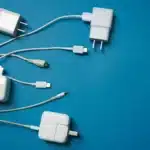
Low-quality or damaged chargers and cables can introduce electrical interference. That noise can confuse the touchscreen controller and trigger phantom inputs—especially while the phone is plugged in. If ghost touch only happens when you’re charging, your power accessories may be to blame.
Screen Protector Problems
A misaligned, cracked, bubbling, or low-quality screen protector can press on the display or disrupt how the digitizer reads touch. Some tempered glass and gel protectors expand with heat or trap moisture, which increases false touches.
Software Bugs or Operating System Issues
Software can play a role. A glitchy OS update, a misbehaving app overlay, or certain accessibility settings can produce odd touch behavior. Android users may see improvements when testing in Safe Mode, which disables third-party apps.
Temperature and Environmental Factors
Extreme heat or cold can affect touchscreen materials and electronics. Overheating can temporarily skew touch sensitivity, while cold can make the screen stiff and less accurate. Rapid temperature changes can also cause condensation inside or on the display.
Cracked or Damaged Screen
A drop that cracks the glass can also damage the digitizer beneath. Even hairline cracks or frame warping may create pressure points that register as taps. If the problem started right after a fall, the screen itself (or its connectors) may be at fault.
Damaged or Failing Digitizer
The digitizer is the component that senses touch. If it’s failing—or if the flex cable is loose from a drop or previous repair—you’ll see random touches, dead zones, or unpredictable behavior across the display.
Moisture or Liquid Exposure
Water and electronics don’t mix. Even if a phone still turns on after getting wet, trapped moisture can cause short-term ghost touch and long-term corrosion. Ghost touch that appears after a spill, rain, pool splash, or wash cycle needs quick attention.
Battery Swelling and Internal Pressure
A swelling battery can push against the display assembly from behind, distorting the screen and digitizer. That pressure can trigger phantom inputs—and it’s also a safety hazard. If your screen is lifting from the frame or you notice a gap, stop using the device and seek professional help immediately.
How to Fix Ghost Touch on a Smartphone
Start with the simplest, lowest-risk fixes. Many cases resolve with a quick cleaning or by removing a problematic screen protector. If those don’t help, move down the list. When in doubt, our technicians at Cell Phone Hospital can diagnose and fix the root cause quickly.
Step 1: Clean and Dry the Screen
Oils and moisture are frequent offenders. Give the display a careful clean, then:
- Power off your phone.
- Wipe the screen with a dry microfiber cloth in small circles.
- If needed, lightly dampen a corner of the cloth with 70% isopropyl alcohol and wipe again. Avoid getting liquid in ports and speaker openings.
- Dry the screen thoroughly and let it sit for 2–3 minutes before powering back on.
Step 2: Remove the Screen Protector and Case
A damaged or ill-fitting protector can create pressure points and false touches. To remove the protector, just:
- Power off the device.
- Gently lift the screen protector from a corner and remove it.
- Clean the display again and test without the protector and case.
If the problem disappears, replace the protector with a high-quality option with the help of a team of experienced technicians.
Step 3: Restart the Smartphone
A simple reboot can clear temporary glitches. The steps are simple:
- Power off the phone completely, wait 30 seconds, then power on.
- If the screen is too erratic to power down, force restart per your device model.
If the ghost touch goes away for a while and then returns, you may be dealing with a software conflict or marginal hardware.
Step 4: Install Available Software Updates
Updates can fix bugs and improve touch controller firmware. You just need to:
- Connect to Wi-Fi and charge above 50%.
- Go to Settings > Software Update and install pending updates.
- Reboot and test the screen again.
Also update key apps, especially launchers, keyboards, and accessibility tools.
Step 5: Test the Phone While It Is Not Charging
If ghost touch only happens when plugged in, the charger or cable may be the culprit. Try to:
- Unplug your device and test for a few minutes.
- Try a certified, high-quality charger and cable from a reputable brand.
- Avoid unstable power sources like car chargers or portable battery packs.
If the issue vanishes off the charger, replace the accessory.
Step 6: Boot Into Safe Mode on Android
Safe Mode disables third-party apps and overlays, helping you isolate software causes. To enable it, you need to:
- Press and hold the power button, then press and hold “Power off” on-screen until you see the Safe Mode prompt.
- Tap OK to reboot into Safe Mode.
- Test the screen for a few minutes. If ghost touch stops, uninstall recently added or suspicious apps.
To exit Safe Mode, restart your phone normally. It’s worth noting that the exact steps can vary by brand.
Step 7: Check for Physical Damage
Look closely for cracks, frame bends, or a screen lifting from the edges—signs of internal pressure or loose connections. Just:
- Run a finger along the display edges to feel for raised spots.
- Shine light across the glass to spot hairline cracks or lifted corners.
If the display is separating from the frame or you suspect a swollen battery, power down and seek professional service immediately.
Step 8: Back Up Your Data
If ghost touch is severe, your phone could enter incorrect passcodes or navigate unpredictably. To protect your data, it helps to:
- Use iCloud, Google Drive, or your manufacturer’s backup tool.
- Save critical items: photos, contacts, messages, 2FA codes, and app data.
- If the screen is too erratic, connect a mouse via USB‑C/USB On-The-Go (OTG) on Android.
- Use a computer to trigger a backup where possible.
Step 9: Consider a Factory Reset Carefully
If you’ve ruled out accessories and app conflicts—and there’s no visible damage—a factory reset can eliminate stubborn software issues. You should:
- Back up everything first.
- Sign out of accounts if required by your device brand.
- Perform the reset from Settings > System > Reset (Android) or Settings > General > Transfer or Reset iPhone.
- Set up the phone as new and test before restoring apps and data.
Use this as a last resort and only after a full backup. If ghost touch returns immediately on a clean system, it’s likely hardware.
Step 10: Get Professional Phone Repair
Persistent ghost touch, visible damage, liquid exposure, or battery swelling calls for a professional diagnosis. At Cell Phone Hospital, our expert technicians quickly pinpoint whether the culprit is the digitizer, display assembly, loose connectors, or environmental factors. We service iPhone, Samsung, Android devices, tablets and iPads, laptops, and even gaming consoles. We offer:
- Same-day repairs for many common issues (when parts are in stock).
- High-quality parts and precise installation.
- Competitive, budget-friendly pricing.
- 90-day limited Satisfaction Guarantee Warranty on parts and labor.
If repair isn’t the best value, we also offer buy, sell, and trade-in options—so you can leave with a working device at a fraction of big-box carrier prices. And since we work from three convenient locations (Tulsa, Broken Arrow, and Owasso), you can easily find one of our technicians near you.
Can Ghost Touch Be Fixed?
Most ghost touch problems are fixable, and many don’t require a full display replacement. Cleaning the screen, removing a faulty protector, switching chargers, or updating software often does the trick. When hardware is at fault, replacing the display assembly or repairing internal connections typically resolves the issue. The key is accurate diagnosis so you don’t waste time or money on guesswork.
When Does Ghost Touch Require Screen Replacement?
A new screen (which includes the digitizer on most modern phones) becomes the recommended fix when:
- The screen is visibly cracked or shows pressure damage.
- The same area of the screen repeatedly registers false touches.
- Ghost touch persists across reboots, Safe Mode, and after removing protectors/cases.
- The issue started after a drop, impact, or previous low-quality repair.
- The display is lifting or the frame is bent (often requiring both screen and frame attention).
Our technicians can confirm whether a full screen assembly is needed or if a simpler repair—like reseating a connector or addressing a swollen battery—will solve it.
Can You Fix Ghost Touch Yourself?
You can—and you should—try the low-risk steps first. These include:
- Cleaning and drying the screen.
- Removing the protector and case.
- Rebooting the device.
- Updating software.
- Testing without the charger.
- Using Safe Mode.
These resolve many cases and cost little to nothing. However, at all times, avoid opening the phone or attempting internal repairs yourself. Modern phones are tightly integrated, and DIY attempts risk tearing flex cables, damaging waterproof seals, or missing hidden issues like battery swelling. If simple fixes don’t help, it’s time for a professional evaluation.
Ghost Touch on iPhone vs. Android
While the root causes are similar on iPhone and Android, the diagnostic steps can look a bit different.
Ghost Touch on iPhone
iPhones use highly integrated display assemblies. If ghost touch appears after a drop or third‑party screen replacement, the digitizer or its connectors may be to blame. It helps to:
- Try removing the screen protector and case, then clean the display.
- Install the latest iOS update.
- Check touch settings like Haptic Touch sensitivity.
- Switch to an Apple or Made for iPhone (MFi)‑certified charger and cable.
If the issue follows a prior repair, the display assembly may need proper reseating or replacement with a high‑quality part.
Ghost Touch on Android
Android devices vary by brand, but the basics are the same. You simply:
- Clean the display and remove your protector.
- Update Android and key apps.
- Boot into Safe Mode to rule out app conflicts.
- Toggle settings like Touch Sensitivity, Accidental Touch Protection, or temporarily disable Adaptive Brightness to test.
If the problem only occurs when plugged in, replace the charger and cable with a certified option.
How to Tell Whether Ghost Touch Is a Software or Hardware Problem
Knowing what problem you’re facing helps you choose the right solution. It’s entirely possible to determine if it’s software- or hardware-related; you just need to know what to look for.
More Likely Software-Related If:
- The issue started after an OS update or new app install.
- A restart temporarily fixes it.
- It improves or disappears in Android Safe Mode.
- It’s inconsistent and not tied to a specific screen area.
- It disappears when you switch chargers.
More Likely Hardware-Related If:
- The problem began after a drop, bend, or liquid exposure.
- The same area of the screen misbehaves repeatedly.
- There are visible cracks, lifted glass, or a separating frame.
- You notice the screen lifting (possible battery swelling).
- It persists after removing protectors, changing chargers, and doing a factory reset.
What Not to Do When Your Phone Has Ghost Touch
A few simple precautions can prevent bigger headaches. Make sure that you:
- Don’t keep entering your passcode; ghost taps can lock you out.
- Don’t press hard on the screen or bend the phone to “stop” the taps.
- Don’t keep using a swollen device; seek help immediately.
- Don’t charge with low-quality or damaged accessories.
- Don’t open the phone yourself unless you’re trained and equipped.
- Don’t ignore liquid exposure; corrosion gets worse over time.
- Don’t assume it’s a virus or hacking; ghost touch is almost always hardware or environmental.
How to Prevent Ghost Touch
While it’s impossible to guarantee that a device will stay in perfect shape, a few simple steps can significantly lower your risk of experiencing hardware and software problems.
Protect the Display
- Use a quality screen protector installed correctly without air bubbles or dust.
- Choose a protective case that covers the edges and corners.
- Avoid placing heavy objects on the phone, and don’t sit with it in a back pocket.
- Keep the device away from pressure or bending.
Keep the Screen Clean and Dry
- Wipe away moisture and oils regularly with a microfiber cloth.
- Avoid using the touchscreen with wet hands when possible.
- Minimize exposure to very humid environments.
- Let the phone dry completely after any moisture exposure.
Use Reliable Charging Accessories
- Stick with compatible, reputable charging equipment from the manufacturer or certified third parties.
- Replace frayed or damaged cables right away.
- Avoid low-quality third‑party chargers.
- Inspect cables and adapters regularly for heat, discoloration, or loose fit.
Avoid Extreme Temperatures
- Don’t leave the phone in hot environments for extended periods.
- Avoid prolonged use in direct sunlight.
- Never leave the phone in a hot car.
- If the device overheats, power it down and let it cool before use.
Address Screen Damage Early
- Don’t ignore cracks or display abnormalities.
- Have significant damage inspected promptly.
- Seek professional repair before the problem worsens.
- Document damage with photos for insurance or warranty claims.
How Much Does It Cost to Fix Ghost Touch?
Premium phones often have more expensive parts, and OLED screens cost more than LCD. Apple screens are typically more expensive than Android screens. So, the cost to fix ghost touch depends on several factors, including:
- The smartphone model, screen type (OLED vs. LCD)
- Manufacturer
- Replacement part quality (OEM vs. aftermarket)
- Extent of damage, labor costs
- Whether liquid damage is involved.
Because of these factors, typical cost ranges vary widely. Budget Android phones might cost $80–$150 to repair, mid‑range Android $120–$200, and premium Android $200–$400. iPhone SE repairs typically run $150–$250, iPhone 12/13 models $250–$400, and newer iPhone 14/15 models $300–$500.
Rather than guessing at costs, request a professional diagnostic or repair estimate. This is where Cell Phone Hospital can help—we’ll give you an honest assessment and competitive pricing without hidden fees.
When Should You Stop Troubleshooting and Get Professional Help?
Get a professional inspection if:
- Basic fixes don’t work after following all troubleshooting steps.
- Ghost touch happens repeatedly or constantly.
- The phone has a cracked display.
- The phone has been exposed to water.
- The issue started after a repair.
- The touchscreen is unusable.
- The phone is entering incorrect passcodes by itself.
- The problem interferes with calls, messages, authentication, or other critical functions.
- You’re unsure about the cause.
- You want a professional diagnosis before attempting repairs.
Professional technicians have the tools and experience to accurately diagnose the problem, identify hidden damage, recommend cost‑effective solutions, perform repairs safely, back their work with a warranty, and prevent additional damage.
At Cell Phone Hospital, we’re the trusted local resource for fast diagnosis and repair. We emphasize quick turnaround, expert technicians, and our 90‑day Satisfaction Guarantee Warranty. If you’re dealing with problems with your device, you aren’t alone; get in touch with our team today, and let our experts get involved.
Frequently Asked Questions (FAQs)
Phantom touches can be caused by screen damage or cracks, moisture or liquid exposure, unreliable charging cables or power adapters, a dirty or oily screen surface, damaged screen protectors, software bugs, internal component issues, or a failing digitizer. Pinpointing the cause is the first step toward a fix.
Start by cleaning and drying the screen, removing accessories like cases and screen protectors, restarting your device, and updating your software. If the issue only happens while charging, try a different high‑quality charger and cable. If these steps don’t work, the problem may be hardware‑related and require professional repair.
Yes. Damage to the display or touchscreen layer can cause unintended input. Even small cracks can interfere with the digitizer’s ability to accurately detect touch, leading to ghost touch. If your screen is cracked, professional screen replacement is usually the best solution.
Yes, particularly if it’s damaged, poorly installed, has debris or air bubbles underneath, or interferes with the touchscreen’s sensitivity. Try removing the screen protector temporarily. If the behavior stops, the protector is likely the culprit.
A charging cable, power adapter, or electrical interference may be contributing. Low‑quality or damaged chargers can introduce electrical noise that disrupts the touchscreen. Test with a reliable, compatible charger and cable. If the issue disappears, the charging equipment is likely the problem.
Malware isn’t the most common explanation for ghost touch. Hardware issues, moisture, faulty accessories, and software glitches are more likely. However, a malicious app can sometimes mimic touch‑related problems. Run a malware scan if you suspect this, but hardware or environmental causes are more common.
Restarting can resolve temporary software glitches, but it won’t fix a damaged screen or digitizer. If ghost touch is caused by software, a restart may help. If it persists after restarting, hardware is more likely.
Yes. Moisture can interfere with touchscreen components and cause unintended inputs. If your phone has been exposed to water, avoid charging it. Let it dry completely or get a professional inspection. Liquid damage can worsen over time if not addressed.
Not necessarily. Diagnose the cause first. Damaged displays or failing touchscreen components may require screen replacement, but issues caused by software, dirty screens, or faulty chargers do not.
Ghost touch itself isn’t physically damaging, but uncontrolled input can change settings, send messages, or make the device difficult to use. It can also lead to accidental purchases or privacy concerns if the phone navigates into sensitive areas.
You can tackle basic troubleshooting at home (cleaning, restarting, removing accessories). Internal screen or digitizer repairs are better handled by a qualified technician. Opening the phone without training can cause additional damage.
Unexpected scrolling, tapping, or swiping can be a sign of ghost touch, but other software or hardware issues can look similar. Note whether the movement is random or follows a pattern, whether it happens during specific activities, and whether it started after a drop or software update.
Persistent unintended touches, dead touch zones, erratic touch response, and problems following physical damage point to a digitizer issue. A professional diagnostic can confirm. Cell Phone Hospital technicians can perform a quick evaluation and recommend the right fix.
References
- HowStuffWorks, “Touch Screens”, computer.howstuffworks.com, November 9, 2012, August 5, 2026, https://computer.howstuffworks.com/touch-screens.htm?s1sid=diup6g41wy0mvzrgqymcm0aj&srch_tag=kwcgfox66kc5zjjv3wdhomuxisrpo66i
- Rupesh Sinha, “How to Fix Touchscreen Problems on Android”, beebom.com, September 29, 2016, August 5, 2026, https://beebom.com/how-fix-touchscreen-problems-android/
- Sophie Siroius, “How Do Touchscreens Work? A Comprehensive Guide to Interactive Display Technology”, www.hp.com, August 27, 2024, August 5, 2026, https://www.hp.com/us-en/tech-takes/monitors/explainer/how-do-touch-screens-work.html
- Morgan DeVries, “How you can fix ‘ghost touch’ on your phone”, kxnet.com, May 31, 2025, August 5, 2026, https://www.kxnet.com/news/state-news/how-you-can-fix-ghost-touch-on-your-phone/