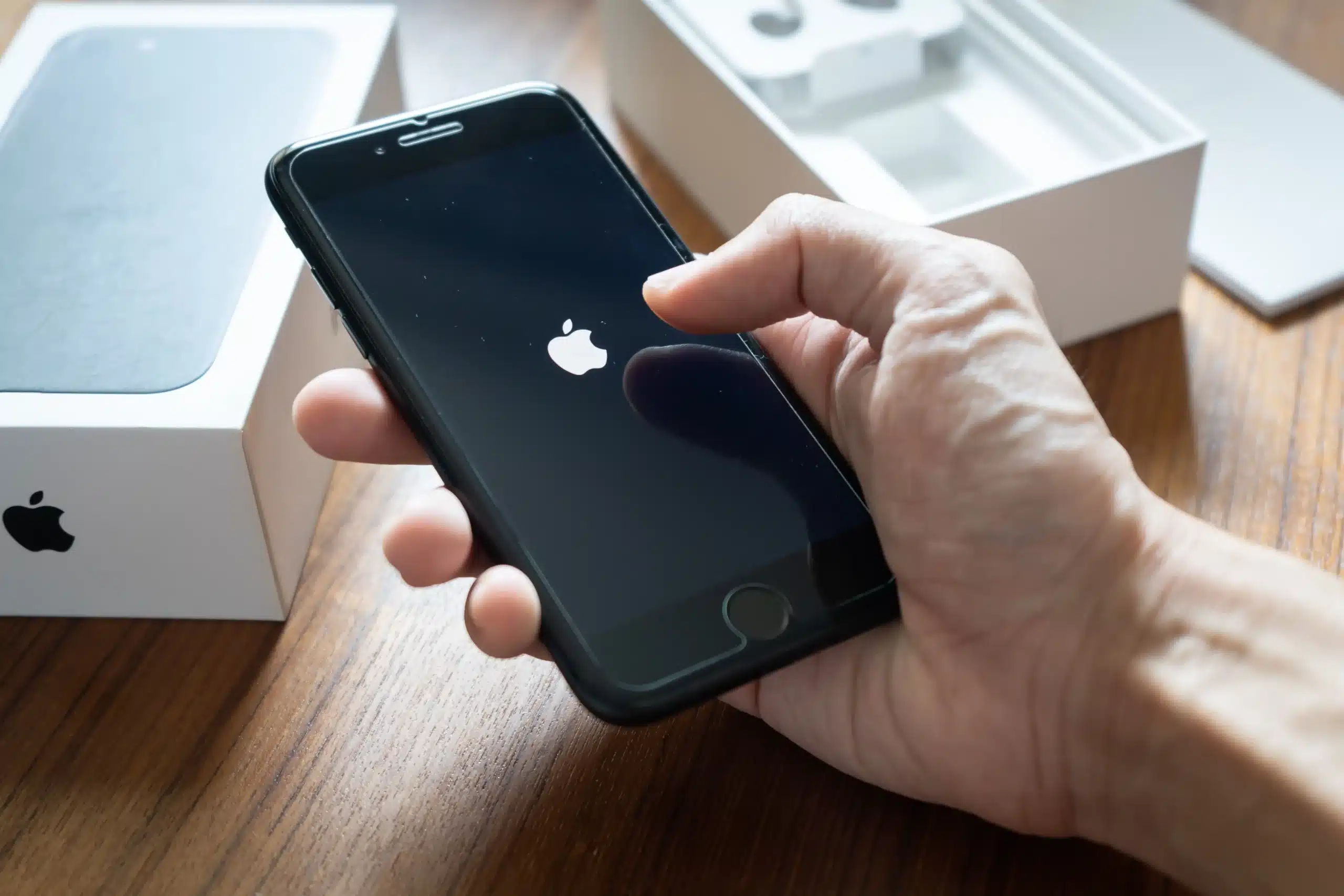
Updating an iPhone keeps the software current and protects it from the old operating system’s (iOS) flaws and bugs. Many users install new iOS versions as soon as they’re released because these updates resolve security issues and improve the phone’s functionality. But some people notice slower response times after the update, to the point that basic actions take longer. If your iPhone is running slowly after an update, here are a few reasons why that happens and how you can fix it.
Does Updating Your iPhone Slow It Down?
Some users see slow performance after installing a new update, and this happens in different iPhone models. Older devices like iPhone XR or iPhone 11 may start operating more slowly because the hardware needs time to process new system files. But this is also seen in newer models. When background tasks run after an update, like re-indexing, re-optimizing apps, and syncing data, apps reopen more slowly, and the screen may pause. These slowdowns usually settle within a couple of days once the system finishes reorganizing the data from the update.
6 Reasons Why Your iPhone Might Be Slow After Updating
An update may change how an operating system handles files and processes, so the phone may behave differently after a restart. Some users notice minor delays, while others see an obvious drop in speed. Here are the main reasons why it happens and where the slowdowns occur.
Old Hardware
Older phone models slow down more quickly after a major update because the hardware is already working near its limit. New system features place more load on the processor. Phones like iPhone XR and earlier models can take longer to settle after new files are installed. Users often experience pauses when switching between apps or loading simple tasks.
Background Tasks
After an update, an iPhone automatically starts certain tasks. It sorts files, scans app data, and organizes iOS changes in the background. These tasks use processing power, so the phone becomes slower during normal use. Some people also notice short pauses or their iPhones heating up during this time.
Low Storage
A phone with low storage can slow down after an update because the iOS needs space to manage new files. When storage is low, devices struggle to open apps and execute routine actions. Users experience longer loading times or apps closing on their own. Cleaning out unused files and large media folders can decrease pressure on the operating system.
Incompatible Apps
Some apps take longer to adjust after a major update. If they were built for older operating systems, they might not respond the same way on a new one. You may see slow load times or brief freezes when they try to load outdated code. The good news is that most developers eventually release updates to their apps, and they work normally once that happens.
Software Bugs
New updates sometimes have issues that slip through testing. The iPhone screen may pause briefly once in a while, or apps may open more slowly than usual. Sometimes these problems don’t follow a clear pattern, making them difficult for developers to address and more noticeable to users. But if a follow-up patch comes out, they’re also resolved on the user’s end.
Cached Data
Old cached files don’t always work in the new iOS after an update. The iPhone attempts to read older data, which causes brief delays during simple actions. Some users notice a lag when switching between apps or opening the photo gallery. Clearing the outdated caches often eliminates these pauses.
How to Fix a Slow iPhone After an Update
A slowdown after an update usually comes from simple system changes. You can address most of them in your iPhone’s general settings. These steps focus on solutions that deal with battery power, stored files, as well as actions and settings that affect how the phone responds.
Disable Background App Refresh
Background App Refresh is an iPhone feature that keeps apps active even when they’re not open. This can slow down the phone after an update. You can turn it off in Settings > General > Background App Refresh. You’ll notice faster response times once this feature is disabled, since that reduces additional activity and gives the iOS more time to stabilize after the update.
Check and Free Up Storage
A phone with limited space slows down after an update, so reviewing storage is necessary. You can open Settings, go to General, then iPhone Storage to check what takes up the most space. Large videos, unused apps, or old downloads use a lot of storage. Deleting some of these files gives the iOS more breathing room and functionality.
Reduce Graphic Animations
Graphic effects place an extra load on the processor, and the slowdown is worse after a recent update. You can turn off these animations in Settings > Accessibility > Motion. Enabling Reduce Motion reduces the visual effects an iPhone uses during basic actions. You can expect quicker screen response times after reducing graphic animation since that frees up system resources.
Update Apps
Apps can run more slowly after an update because they were designed for an older iOS version. Updating them removes this incompatibility. When you open the App Store, check the Updates section, and install the latest version of the app. Many phones experience fewer pauses after these steps are completed.
Battery Health and Performance
A phone with weak battery health may slow down after an update because the iOS limits battery performance. You can check the battery status by going to Settings, opening Battery, and checking Battery Health. If the maximum capacity is low, your iPhone may work more slowly, even during basic tasks. But replacing the battery usually improves the phone’s overall speed.
Reset Settings
Resetting the settings can resolve configuration problems that may make a phone slow after an update. This option doesn’t delete data, but it resets system preferences like network settings. You can find it in Settings under General, then tap on ”Transfer or Reset iPhone”, and choose the Reset option. Many users see smoother performance once the phone starts with these refreshed settings.
Deactivate Unused Features
Some unused features stay active in the background and use processing power. You can review the settings step by step in sections, such as Siri, Location Services, Bluetooth, and others. Turning these features off reduces unnecessary activity. Many users report a steadier response when fewer background functions are running.
Delete Unwanted Apps
Any installed apps, including unused ones, take up storage and may slow down the phone after an iOS update. You can hold an app icon and select Remove App, or delete it from Settings > General > iPhone Storage. Clearing apps you don’t use frees space and reduces processing load. Most people notice smoother app loading after removing unwanted apps.
When to Seek Professional Help
A slow iPhone that doesn’t get faster for days, even after making changes in the settings or clearing storage, is a sign you need a deeper look. Some users deal with random freezes or long pauses that don’t go away even after trying common fixes. These issues come from battery wear or hardware issues. A technician can test phone parts directly and find the source of the problem. Professionals can also often safely solve these issues while preventing further problems or damage.
Summary
An iOS update can negatively change how your phone responds for a while. Full storage, old apps, and unnecessary features can make this slowdown more noticeable. But don’t worry: small adjustments often make iPhones work steadily again. And if nothing seems to help, look into professional iPhone repair to find the cause of the issue.
Frequently Asked Questions (FAQs)
Many users can’t revert after installing a new iOS version. Apple stops signing older versions very quickly, and a phone can’t install an unsigned system. A downgrade only works during the short window when the older version is still signed, and even then, this process wipes the device.
A slowdown is common right after an update because the new iOS reorganizes files and runs background tasks. Some users experience slow loading, a hot phone, or brief pauses during routine actions. These changes usually settle after the iPhone finishes its internal processing.
Avoiding updates leaves phones on older software that lacks necessary security patches. Threats target outdated operating systems more. New features and updates in apps may not work on older versions of iOS.
An iPhone needs time to refresh system files and settle background tasks. The process can take from a few hours to a day.
Older phones struggle to keep up with tasks after a new update. More often, an older iPhone will not display the new iOS version in the software update. Apple lists the supported models for each update; you can check if your model qualifies for the update. If your phone is not included, it’s too old for an update.